Creating and Editing Narrative Templates
Creating Narrative Templates
Creating narrative templates in ePCRIV can be done on epcriv.com, with the correct permissions, by first clicking on the Template tab on the right of the home page.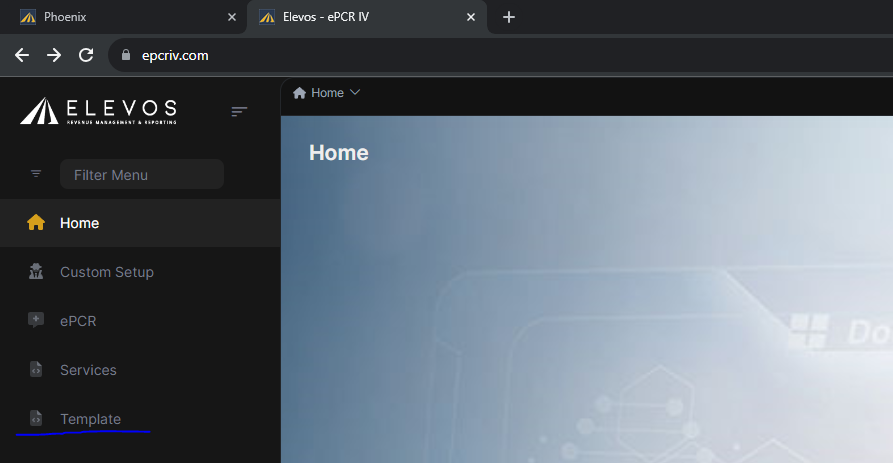
Once the Template page is open, click on the agency and hit select on the bottom right for which you need to edit or create narrative templates in.
After clicking select the Template Patient Care Report will open, switch the Template Narrative by clicking Narrative on the top menu bar.
Once the Template Narrative page is open to add a new template click the Add New Template button on the top right.
On the Template Narrative Details page the template name can be added by typing in the Template Name text box.
The template text can be added to the Template Text text box.
Property Mapping will show up on the right side of the page and can be used to have elements from pcrs automatically shown in the narrative.
Note: If properties are not showing up on the right clear web browser cache.
To add a property from the property mapping to the template first click in the template where you want to add the property
After clicking where to add the property click on the property in the property map
This will populate the Template Text with the text.
The text in the curly brackets will show up in the pcrs as the input for the element.
Once finished with the template click the Save button on the bottom right.
Editing Narrative Templates
To edit Narrative Templates, on the Template Narrative page, click the Actions button next to the narrative and click Edit.
Changing the name and entering text and properties follow the same steps as above.
Related Articles
Narrative Templates
The default Narrative Templates will provide a way for the user to save a template and name it. During the saving of that template, the user will select within the text, fields contained in the UI that will be used to populate data entered into the ...Lesson 10 - Narrative Tab
ePCRIV APP Guide
Electron App for Elevos ePCRIV System: A Guide to Creating Patient Care Reports The Electron app for the Elevos ePCRIV system is designed to streamline the creation of patient care reports. Here’s a step-by-step guide to ensure smooth operation: ...Default PCR's
Default PCR's are created to save time at the moment of creating a new PCR for any specific case. Here we will show you how to create one and how to re-use it in the future. Default PCR's are a time saving tool, that will help a unit when they're on ...ePCRIV APP Guide
Electron App for Elevos ePCRIV System: A Guide to Creating Patient Care Reports The Electron app for the Elevos ePCRIV system is designed to streamline the creation of patient care reports. Here’s a step-by-step guide to ensure smooth operation: ...