Common Medication Setup
To manage the common medications in your agency, you need to access agency.epcriv.com
Once you have logged in, you will navigate to Agency Setup.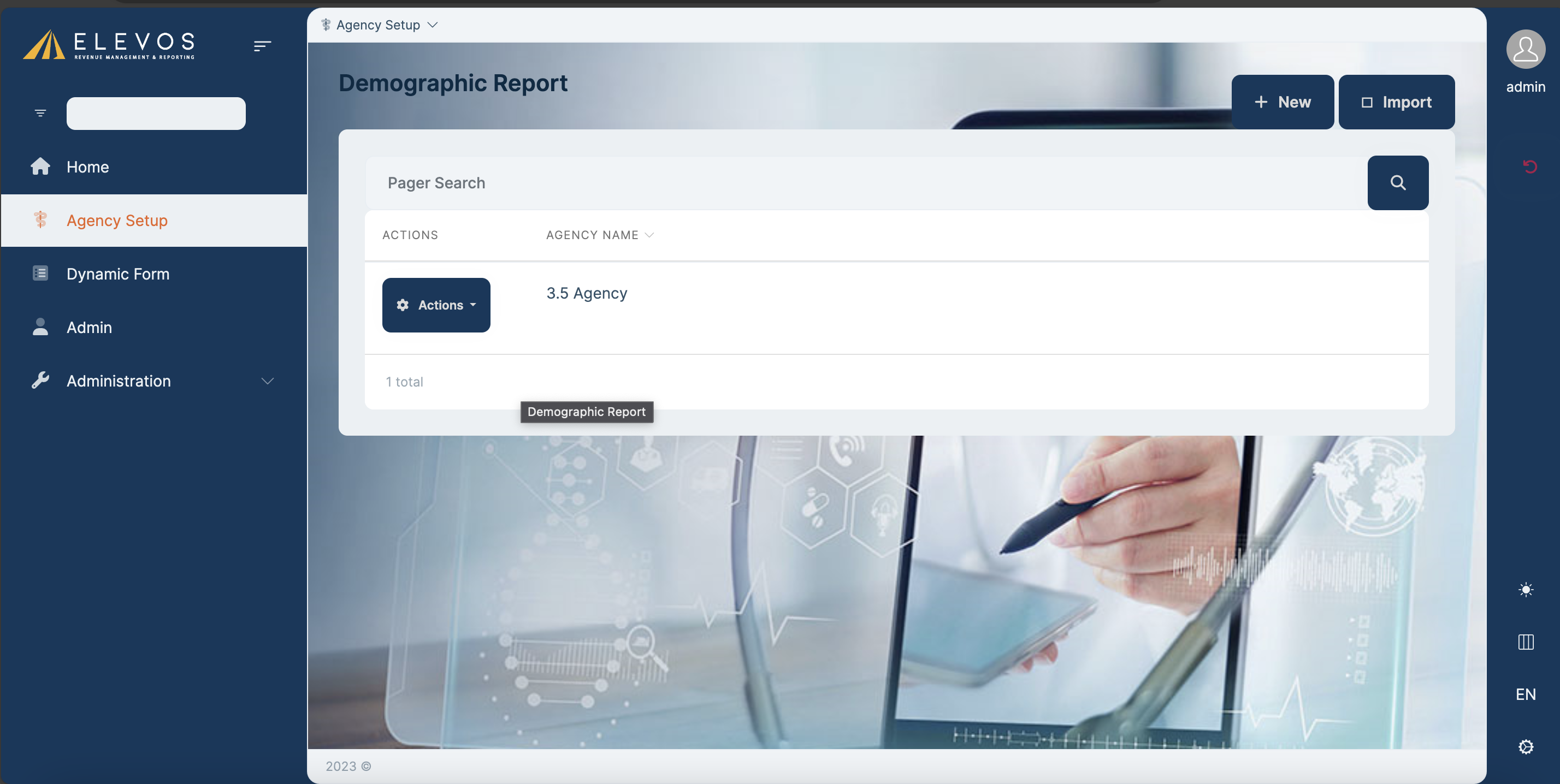
Next, you will click on the actions button, and then on edit.
Once you're inside the agency, you will have to navigate to the Configuration tab.
Once there, click on the Common medication tab.
You will find the following window.
In this window, you can select the medication you'd like, the dosage for that medication, the route to administer it, and the units of measurement.
If you'd like to add more medications, you can click on the button that says Add group and repeat the process.
To save all changes, simply click on the save button on the lower right side of your screen, and that way all new common medications will be saved.
Related Articles
Lesson 3 - Shift Setup
This video will show you how to complete your shift setup. This step will be completed at the start of each shift.Response Unit Shift Setup
In this article, you will find how to set up a Response Unit's shift. First, we will access the ePCR tab in the main menu on the Elevos Phoenix QA service, and select our agency. We will click on the “Shift Setup” button located in the upper right ...Adding Personnel (For users with existing credentials or users who do not need system login)
This article explains how Agency Administrators can add personnel in agency.epcriv.com. This process applies to: Users who already have ePCRIV credentials (they need to log in to the system) Users who do not require login access (e.g., drivers) Only ...Narrative Templates
The default Narrative Templates will provide a way for the user to save a template and name it. During the saving of that template, the user will select within the text, fields contained in the UI that will be used to populate data entered into the ...ePCRIV APP Guide
Electron App for Elevos ePCRIV System: A Guide to Creating Patient Care Reports The Electron app for the Elevos ePCRIV system is designed to streamline the creation of patient care reports. Here’s a step-by-step guide to ensure smooth operation: ...